
Note
There is no need to ever restore built-in roles since they can not be deleted from Entra ID. However, you can restore the role assignments and role settings for built-in roles by following the steps described in this support article. Instructions for restoring Custom roles can be found here.
Step 1. Sign into the backup portal
Open your web browser and go to the following address: https://shield-cloud.nexetic.com/
Select Sign in with Microsoft 365. Insert your Microsoft 365 admin credentials for the tenant you want to restore data from.
Resellers can also sign in via Nexetic Portal.
Step 2. Select Backup for Entra ID
Click the icon in the top-left corner of the page and select Backup for Entra ID.
Step 3. Select Built-in roles page
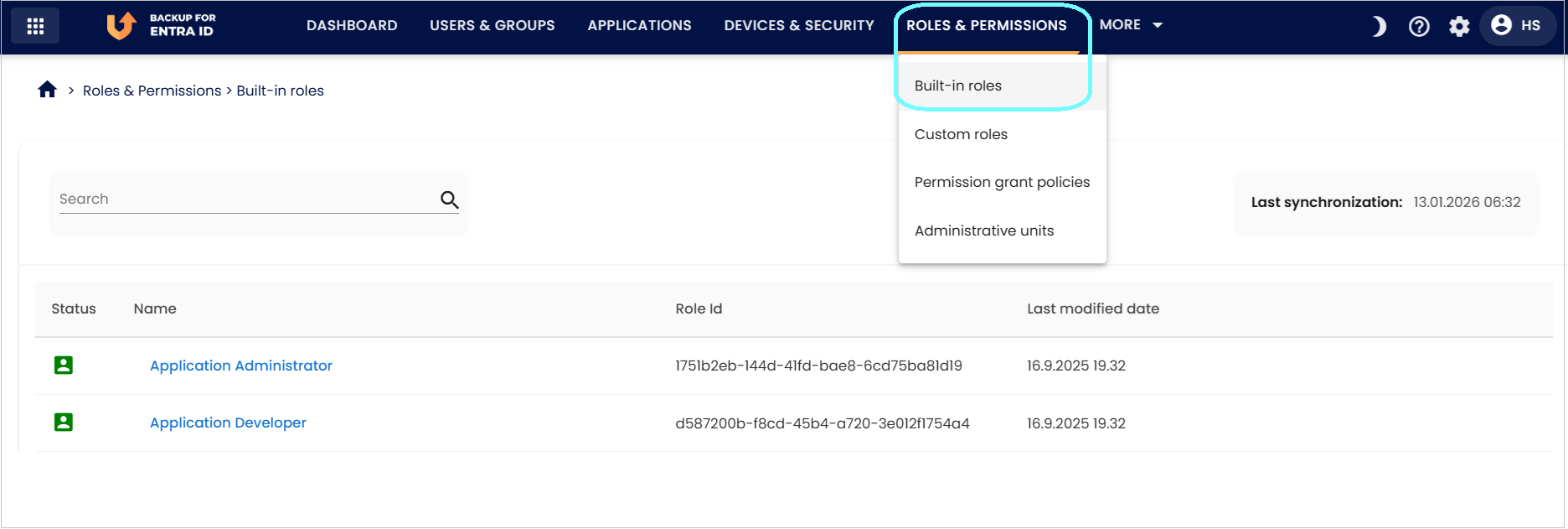
Click Built-in roles under Roles & Permissions in the top navigation. You can see the list of all built-in administrative roles that have been backed up from the customer's Entra ID tenant.
Step 4. Locate the Role
You can sort the roles by their Name, Role Id or Last modification date. You can also filter them by typing any part of the role name in the Search box.
Step 5. View the role details and versions
To proceed, you must first open the role. You can then view its details.
Next, open either View role assignments and View role settings to see the assignments and settings for the role, also letting you browse versions by selecting a Snapshot date. Empty lists mean there were no entries at that time. Relevant logs help you identify when changes occurred. When you’ve identified the correct version, restore the role settings and/or assignments by selecting Restore this version.
Step 6. Select restore options
Select the snapshot date and time from the calendar. You can change it even if you selected a version earlier.
Choose your restore options:
- With role assignments – restores role assignments for the selected role.
- With role settings - restores role settings for the selected role.
Once you have selected the options, start the restoration by clicking Restore.
Note
Assignments and settings for built‑in roles can only be restored individually; bulk restore isn’t supported.